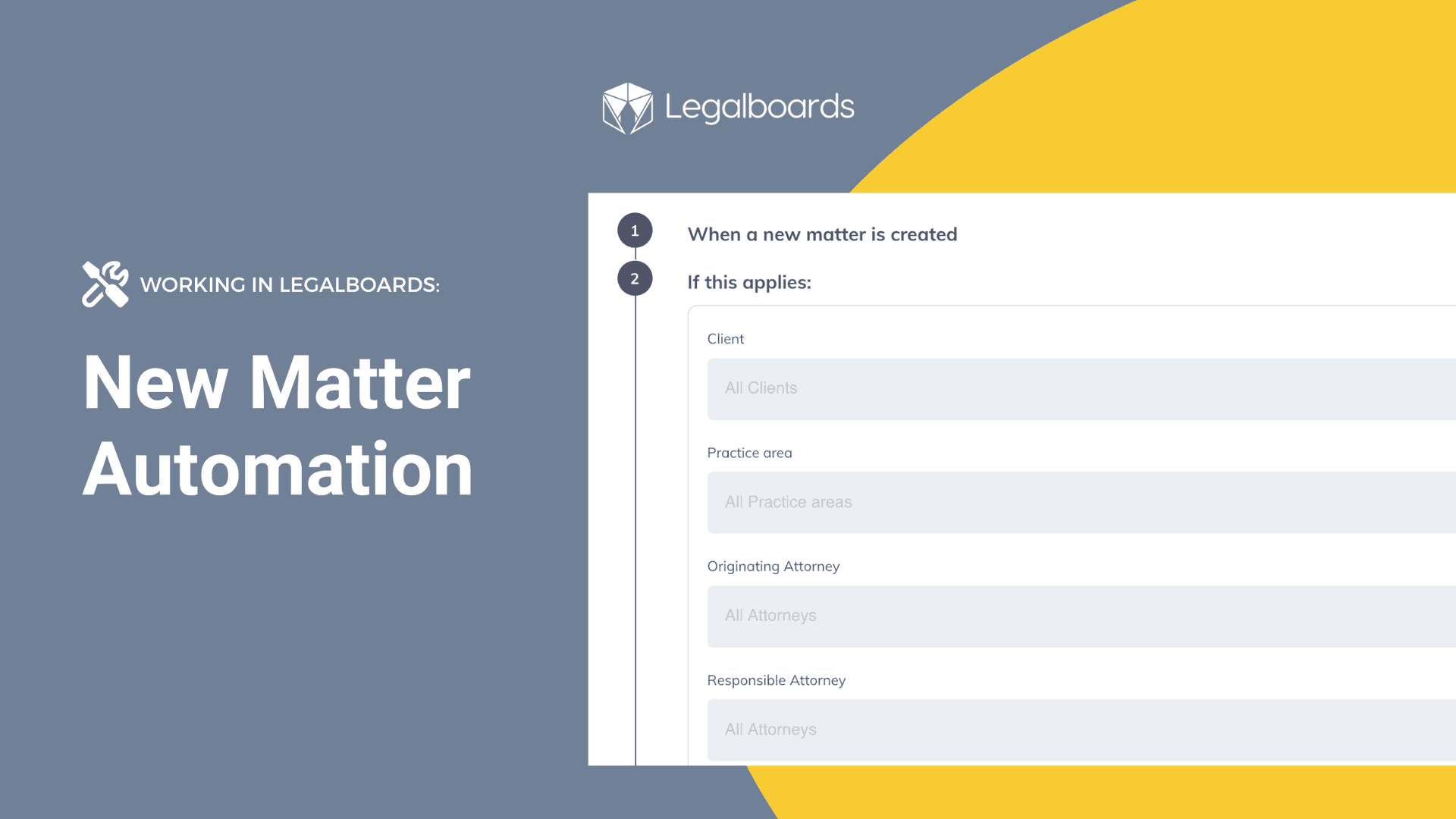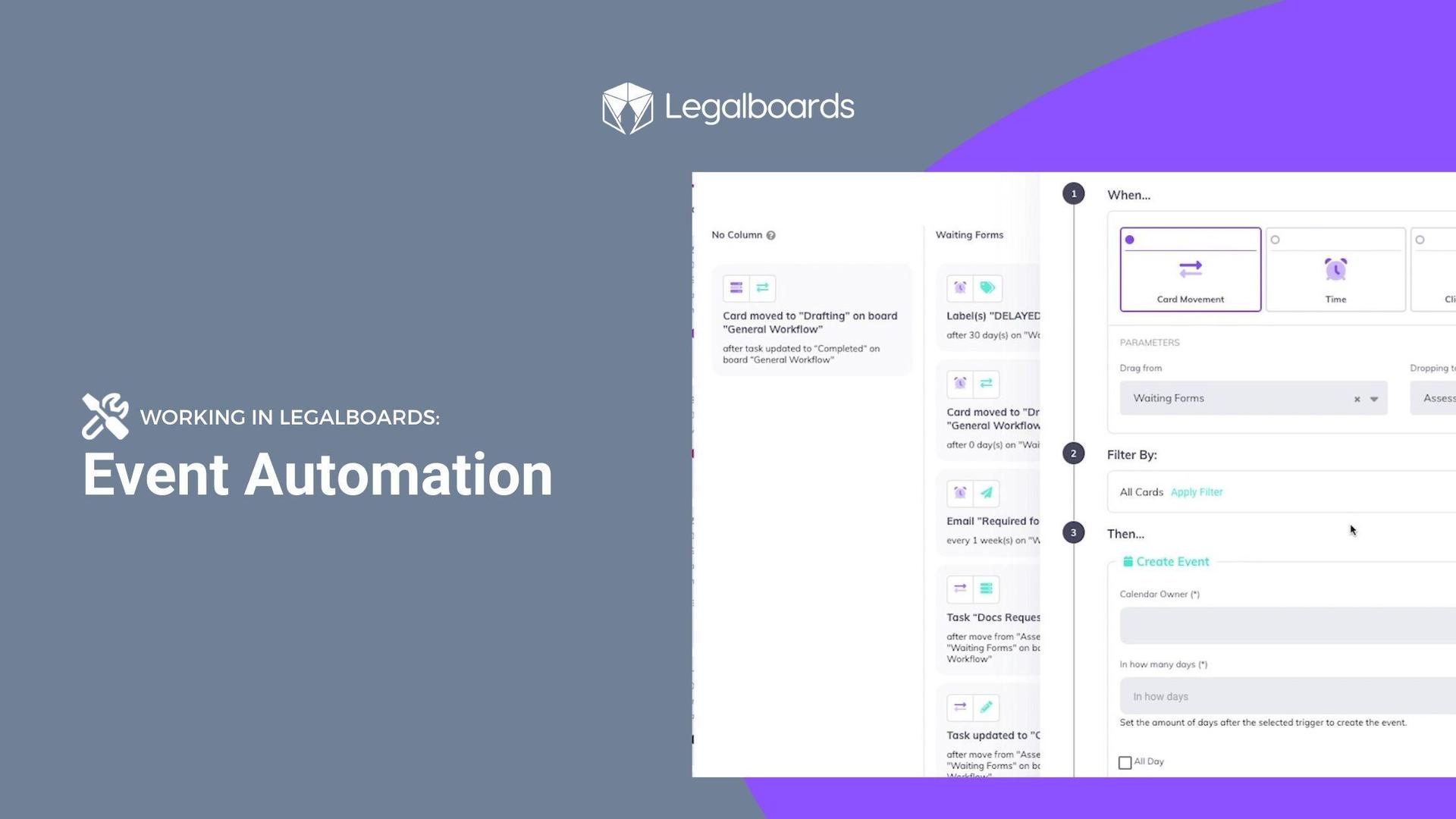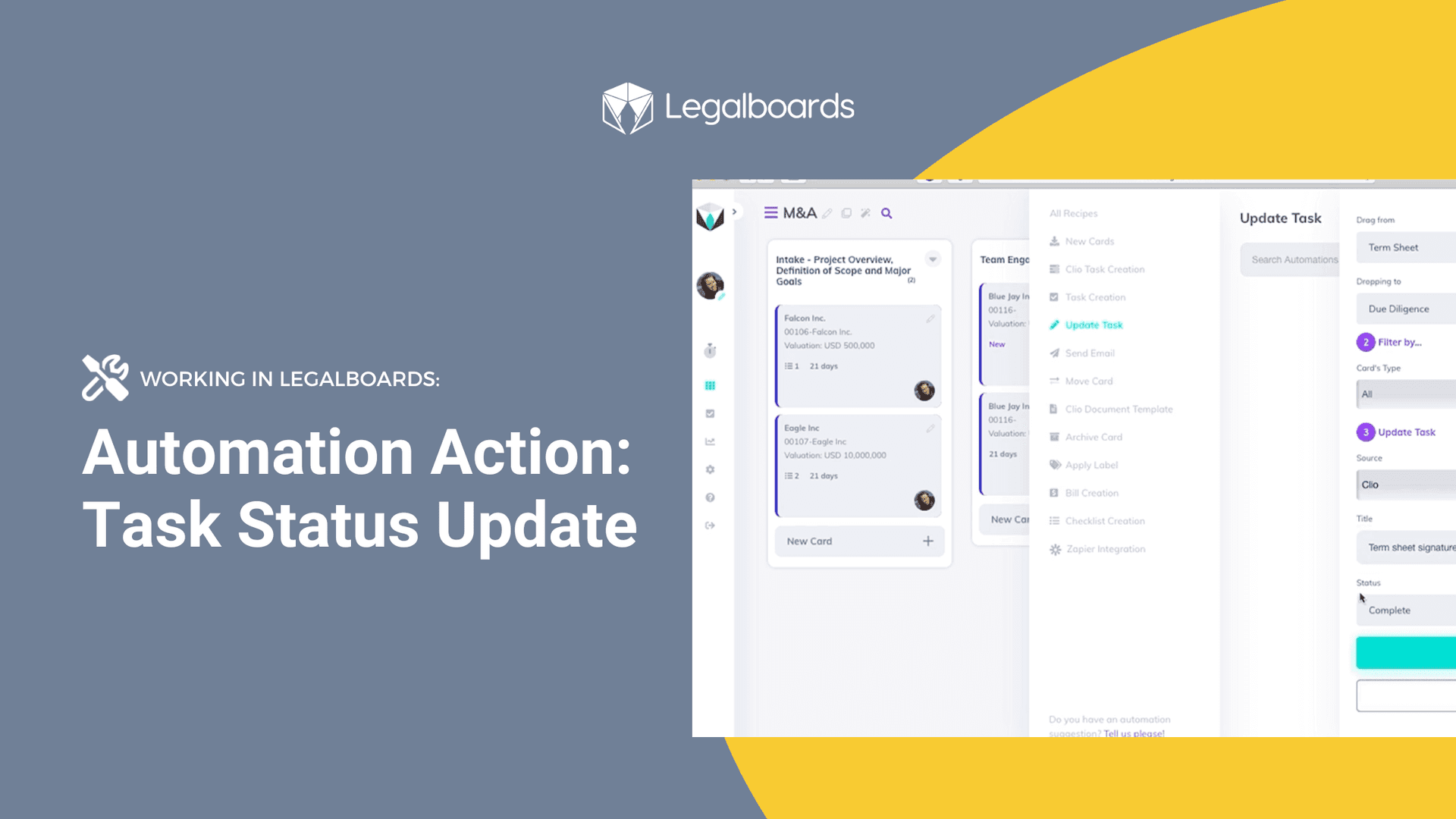

An automated case update workflow helps law firms reduce manual follow-ups, eliminate status confusion, and keep cases moving without constant check-ins.
Instead of relying on emails, spreadsheets, or verbal updates, this approach ensures that case status changes automatically when real work happens. As a result, teams gain visibility without adding extra tools or meetings.
In this guide, we show exactly how to build an automated case update workflow inside Legalboards, following the same step-by-step setup demonstrated in the video walkthrough below.Case updates are one of the biggest sources of hidden work inside law firms. Implementing an automated
This is not theory.
This is a practical, step-by-step setup you can replicate.
Watch the Full Walkthrough
How to Automate Case Updates in Legalboards
In this video, Bruna walks through:
- Creating an automation inside a Legalboards workflow
- Defining triggers based on real case activity
- Automatically moving cases forward
- Generating the next steps without manual follow-up
Use the video alongside the steps below to follow along.
What This Automation Solves
Before diving into the setup, it’s important to understand what this automation is designed to solve.
In most law firms, case updates are not missing. Rather, they are scattered across tools, people, and inboxes. Because of that, teams spend time searching for information instead of acting on it.
As workflows grow more complex, this fragmentation leads to manual follow-ups, repeated questions, and late discoveries of blocked cases. Ultimately, automation should reduce this friction, not create more noise.
The goal here is simple: when something happens in a case, the workflow updates itself and everyone sees the same status immediately.
Step 1: Start With a Clear Workflow Board
Automation only works if the workflow is clear.
Inside Legalboards, Bruna starts with a board that represents the real stages of a case, not vague statuses.
Example stages:
- Intake received
- Documents requested
- Documents received
- Filed
- Waiting on response
- Follow-up required
- Completed
Each column represents a decision point, not just a label.
Best practice:
If you can’t explain what moves a case from one column to the next, automation will fail.
Step 2: Identify the Automation Trigger
In the video, Bruna shows how to create an automation based on a specific trigger.
A trigger is the event that proves progress happened.
Common triggers include:
- A card is moved to a specific column
- A task is marked as completed
- A document is received or uploaded
- A deadline is reached or approaching
Example from the workflow:
When a case card is moved to “Documents Received”, that action becomes the trigger.
This is critical:
Automation should respond to work, not assumptions.
Step 3: Define the Automated Action
Once the trigger is clear, the next step is defining what should happen automatically.
In Legalboards, Bruna configures actions such as:
- Creating the next required task
- Assigning it to the correct role
- Setting a due date based on rules
- Moving the case to the next stage
- Sending an internal notification if needed
Example:
When documents are received:
- Create a “Review documents” task
- Assign it to the responsible paralegal or lawyer
- Set a due date automatically
- Move the case forward in the workflow
This removes manual decision-making from repetitive work.
Step 4: Use Roles, Not People
One important detail Bruna highlights is using roles instead of specific names.
Instead of assigning tasks to “Sarah” or “John”:
- Assign tasks to “Assigned Paralegal”
- Or “Responsible Lawyer”
Why this matters:
- Staff changes don’t break automations
- Workload stays balanced
- The workflow scales as the firm grows
This is a small setup choice with a big operational impact.
Step 5: Automate Case Movement Carefully
Not every automation should move a case automatically.
Bruna shows how to:
- Move cards automatically only when the next step is guaranteed
- Leave manual movement when judgment is required
Good rule:
If a human still needs to decide, don’t automate the move.
Legalboards lets you automate selectively, so control stays with the team.
Step 6: Add Safeguards and Visibility
Automation should surface risk, not hide it.
In the workflow shown:
- Deadlines are visible on the board
- Overdue tasks are clearly flagged
- Bottlenecks appear instantly
- Partners can see status without asking
This is where automation and visibility work together.
The result:
Paralegals stop acting as human dashboards.
Partners stop chasing updates.
Real Example: What Changes After This Automation
Before:
- Case updates required emails or meetings
- Tasks were created manually
- Follow-ups depended on memory
- Status questions interrupted the team daily
After:
- Case status updates itself
- Next steps are created automatically
- Deadlines are enforced by the system
- Everyone sees the same truth in real time
The work doesn’t change.
Common Mistakes to Avoid
Automating a Broken Workflow
If the process is unclear, automation will make it worse.
Fix the workflow first.
Over-Automating Decisions
Automation should handle routine steps, not professional judgment.
Treating Automation as “Set and Forget”
Review automations quarterly as workflows evolve.
When This Type of Automation Makes Sense
This setup is ideal for:
- Immigration
- Family law
- Personal injury
- Litigation support
- High-volume, process-driven practices
Anywhere the same steps repeat across cases, automation pays off fast.
How Legalboards Supports This
Legalboards was designed to:
- Model real legal workflows
- Automate repetitive steps
- Keep humans in control
- Provide real-time visibility across all cases
It integrates with tools like Clio, MyCase, Outlook, Google Calendar, DocuSign, and Dropbox, so automation fits into your existing stack.
Talk through your workflow directly:
https://legalboards.com/book-a-demo
Final Takeaway
Automation is not about speed.
It’s about consistency and visibility.
If your firm still relies on people to remember what happens next, this is exactly the type of workflow automation you should be building.
Watch the video.
Replicate the setup.
Adjust it to your practice.
That’s how automation actually works in a law firm.