Estate planning workflow automation is the difference between a matter that moves itself forward and one that depends on someone remembering what comes next.
Most estate planning firms are meticulous about the legal work. The will is carefully drafted. The trust is structured correctly. However, between each of those steps, work sits waiting. The client document request goes out manually. The attorney review notification comes from a Slack message or a hallway conversation. The signing appointment gets scheduled because someone remembered to follow up.
None of that coordination has to be manual. When you set up estate planning workflow automation in Legalboards correctly, the system handles every handoff. The paralegal does not chase. The attorney does not wait. The client does not fall through the cracks between stages.
This guide walks through the complete setup, stage by stage. Start from the estate planning template or build from scratch. Either way, by the end of this setup, your workflow runs itself.
Before You Build: The Three Rules of Workflow Automation
Before setting up any automation, three principles will save you from building something that creates noise instead of movement.
First, each stage needs a clear definition of done. If you cannot define what “completed” means for a stage, the automation that triggers on completion will never fire reliably. Define the exit condition before you build the trigger.
Second, every automated task needs a named owner. Automation assigns work. However, if the assignment goes to a role rather than a specific person, it often goes nowhere. Assign to individuals, not teams.
Third, start with the stages that cause the most manual follow-up in your firm right now. Those are the highest-value automations. As the workflow automation pillar explains, the goal is to automate coordination, not legal thinking. Start where coordination currently costs the most time.
The Six Stages of an Estate Planning Workflow Board
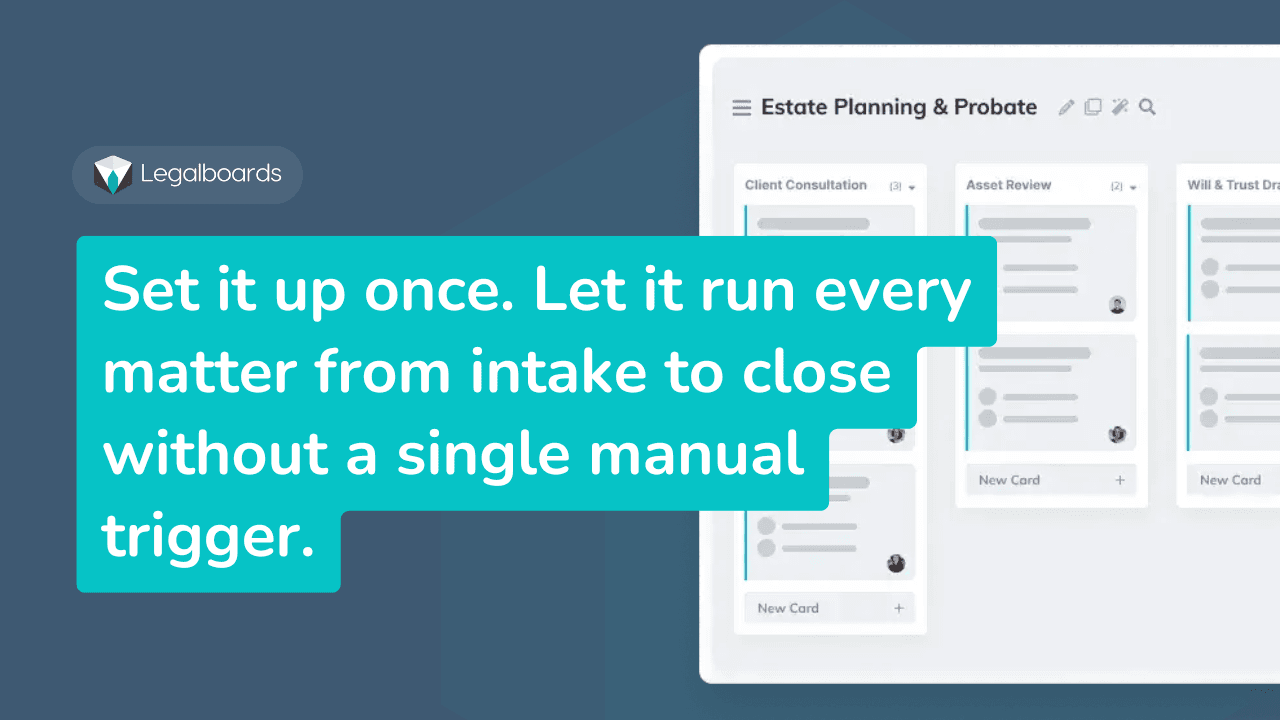
The following six stages cover the full lifecycle of a standard estate planning matter. Each one maps to a column on your Legalboards board. Adjust the names to match your firm’s language, but keep the logic intact.
Stage 1: Intake and Conflict Check
This is where every new matter begins. When a new client engagement opens in Clio or your case management system, the matter card should appear in this column automatically. From there, the first tasks are conflict check, engagement letter, and initial information collection.
TRIGGER New matter created in Clio (or case management system) in the Estate Planning practice area ACTION Create card in Intake and Conflict Check column on Estate Planning board
TRIGGER Card created in Intake and Conflict Check ACTION Create task: “Complete conflict check” — assign to [admin/paralegal] — due in 1 day
For more detail on the new matter automation setup, see the New Matter Automation guide.
Stage 2: Document Collection
This stage is where most manual work accumulates in estate planning firms. Clients need to provide asset lists, account information, existing documents, and beneficiary details. Without automation, the paralegal manually sends requests, manually follows up, and manually confirms receipt.
TRIGGER Card moves from Intake and Conflict Check to Document Collection ACTION Send automated email to client: “We need the following documents to prepare your estate plan...” with document checklist
TRIGGER Card moves from Intake and Conflict Check to Document Collection ACTION Create task: “Confirm all client documents received” — assign to paralegal — due in 7 days
TRIGGER Card has been in Document Collection for more than 10 days ACTION Create task: “Follow up with client on outstanding documents” — assign to paralegal — due in 1 day
Stage 3: Draft Preparation
Once documents are confirmed received, the matter moves to drafting. This stage belongs to the attorney or the paralegal doing the substantive preparation work. The key automation here is the transition trigger from Document Collection.
TRIGGER Task “Confirm all client documents received” is marked complete ACTION Move card from Document Collection to Draft Preparation
TRIGGER Card moves to Draft Preparation ACTION Create task: “Prepare will and trust drafts” — assign to [attorney or senior paralegal] — due in 5 days
For more detail on task creation automation setup, see the Task Creation Automation guide.
Stage 4: Attorney Review
This is the stage where matters most often stall invisibly. The paralegal finishes the draft and notifies the attorney informally. The attorney is in meetings. The draft sits for three days with no status update. Nobody knows it is waiting. The law firm deadline tracking problem starts here.
TRIGGER Task “Prepare will and trust drafts” is marked complete ACTION Move card from Draft Preparation to Attorney Review AND create task: “Review and approve estate plan drafts” — assign to reviewing attorney — due in 3 days
TRIGGER Card has been in Attorney Review for more than 72 hours ACTION Send alert to managing partner: “Matter [name] has been in Attorney Review for 3+ days”
Stage 5: Signing Coordination
After attorney approval, the matter moves to signing. This stage requires scheduling the signing appointment, confirming the client, and preparing the signing package. Each of those steps fires automatically when the card arrives in this column.
TRIGGER Card moves to Signing Coordination ACTION Create task: “Schedule signing appointment with client” — assign to paralegal — due in 2 days
TRIGGER Card moves to Signing Coordination ACTION Create task: “Prepare signing package and witness coordination” — assign to paralegal — due in 3 days
TRIGGER Card moves to Signing Coordination ACTION Send automated email to client: “Your estate planning documents are ready for signing. Please call us to schedule your appointment.”
Stage 6: Filing and Close
The final stage covers any filing requirements, final document delivery to the client, and matter close. When the matter closes, it moves to billing automatically so nothing gets missed.
TRIGGER Card moves to Filing and Close ACTION Create task: “Deliver executed documents to client” — assign to paralegal — due in 2 days
TRIGGER Card moves to Filing and Close ACTION Create card in Billing board in “Ready to Invoice” column
How to Verify Your Automations Are Working
After building each automation, test it before relying on it for live matters. Here is the verification checklist to run through before going live.
- Automation engine is turned on at the account level. Go to Settings and confirm the master automation toggle is enabled. This is the single most common reason automations appear to be set up correctly but never fire.
- Each trigger is set to the correct type. Card movement, pending time, and task update are three different trigger types. Confirm you have selected the right one for each automation.
- Task names match exactly if using Clio task triggers. Legalboards searches for an exact string match. A space, capitalization difference, or punctuation change will prevent the trigger from finding the task.
- Each automation has a named assignee, not a blank field. Automations with no assignee create tasks that belong to nobody.
- Test with a real matter card by moving it manually through each stage and confirming the expected tasks and notifications appear.
For a complete look at how operational visibility works across a firm once automation is running, the operational visibility pillar covers the full picture.
What This Setup Removes From Your Week
Once estate planning workflow automation runs across all six stages, the following manual work disappears from the paralegal’s weekly routine.
- Manually sending the initial document request email to each new client
- Following up on outstanding documents after 10 days
- Notifying the attorney that a draft is ready for review
- Checking whether attorney review is stalled
- Scheduling the signing coordination tasks after approval
- Remembering to open the billing matter after close
Each of those tasks still happens. However, the system initiates them now, not the paralegal’s memory. That shift reduces cognitive load, reduces follow-up overhead, and makes paralegal deadline tracking significantly more reliable because fewer steps depend on someone remembering to trigger them.
Frequently Asked Questions
Does estate planning workflow automation in Legalboards require coding?
No. Every automation in Legalboards is set up through a three-step interface: choose when the automation triggers, apply any filters, and define the action. No code, no IT involvement, and no technical background required. Most automations take under five minutes to configure.
What triggers can I use for estate planning workflow automation?
Legalboards supports three trigger types: card movement (when a card moves to a new column), pending time (when a card has been in a column for more than a set number of days), and task update (when a specific task is marked complete). All three are used in the estate planning setup above. For Clio users, new matter creation in Clio can also trigger card creation in Legalboards automatically.
What if my estate planning workflow has different stages than these six?
The six stages in this guide are a starting point, not a fixed structure. Rename, add, or remove columns to match how your firm actually handles estate planning matters. The automation logic applies to whatever stages you define. The key is to make sure each stage has a clear entry condition and a clear exit condition before building the triggers.
How do I handle matters that get stuck in a stage for longer than expected?
Use the pending time trigger. Set an automation that fires when a card has been in a specific column for more than your defined threshold, such as 10 days in Document Collection or 72 hours in Attorney Review. The action can be a task created for the paralegal to follow up, or an alert sent to the partner. This converts invisible stalls into visible signals.
Can I connect this estate planning automation to Clio?
Yes. If your firm uses Clio, Legalboards integrates directly. New matters created in Clio can automatically create cards on your estate planning board. Task completions in Clio can trigger card movement in Legalboards. For the full Clio integration setup, see the Legalboards and Clio guide and the Clio integration feature page.
Ready to Build Your Estate Planning Workflow?
Start from the estate planning template in Legalboards and add the automations above one stage at a time. Your first automation will be running in under an hour.
Start a free 7-day trial at app.legalboards.io/register — no credit card required.