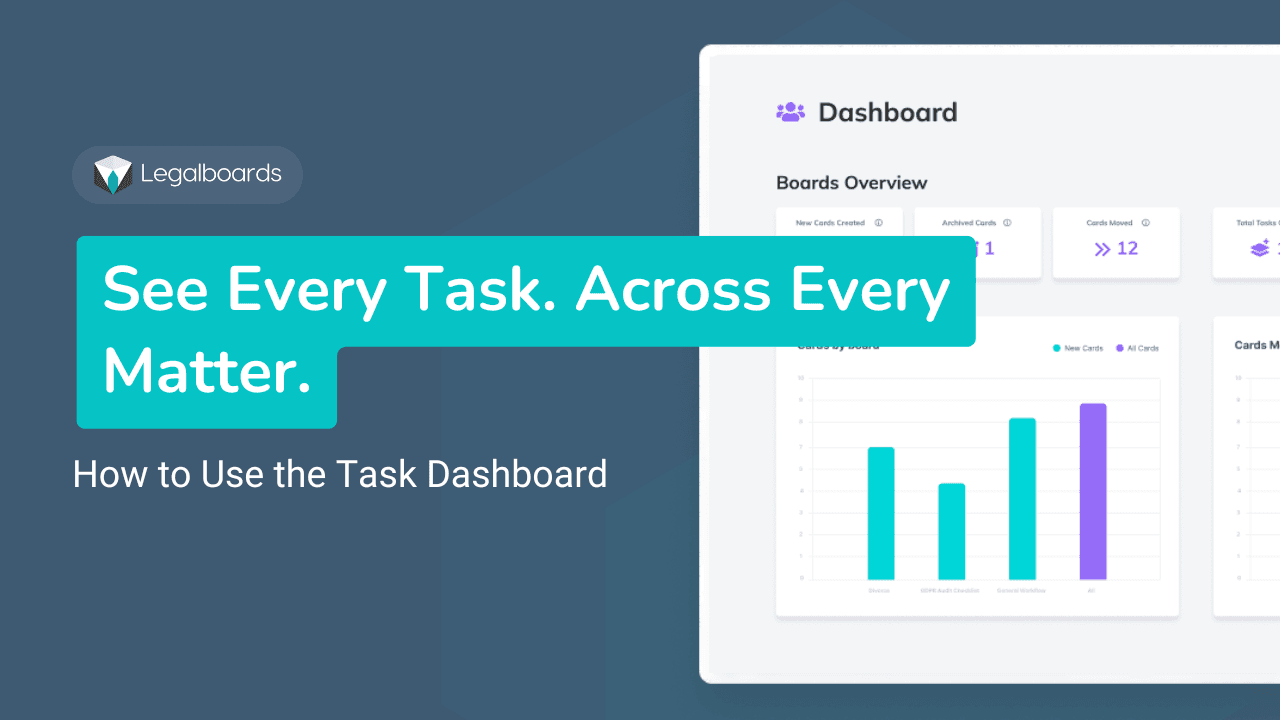
The Task Dashboard in Legalboards gives you a single view of every open task across every matter in your firm. Instead of opening card by card or asking around, you open the dashboard and see what is assigned, what is overdue, and what needs attention today — all in one place.
This is the operational visibility layer for daily task management. It crosses matter boundaries in a way that individual boards do not — useful for anyone responsible for more than one matter at a time.
Watch the video tutorial:
What the Task Dashboard shows you
The Task Dashboard surfaces all open tasks across all boards and matters your account has access to. Each task row shows the task name, the matter it belongs to, the assigned team member, the due date, and the current status.
The key difference from looking at a single board: the dashboard is not scoped to one matter. A paralegal handling seven active matters does not need to open seven boards to see what is due today — the dashboard aggregates everything into one list, filterable by what matters to them.
How to open the Task Dashboard
- Log in to your Legalboards account.
- In the left navigation panel, select Tasks.
- The dashboard opens to the default view — all open tasks across all boards, sorted by due date.
The default view shows everything that is assigned and not yet completed. Completed tasks are hidden by default but can be surfaced using the status filter.
Filtering the dashboard to what matters to you
The dashboard has four filters. Each one is useful in a different context.
- Assignee. Filter to a single team member to see their full task load. Useful for office managers reviewing workload distribution across the team — if one paralegal is carrying 30 open tasks and another has 8, that imbalance is visible immediately.
- Board. Filter to a specific board to focus on one practice area or matter group. Useful when you want to triage a single case type without noise from the rest of the firm's work.
- Due date. Filter to tasks due today, due this week, or overdue. The overdue filter is the most important one for daily triage — it surfaces anything that should have been done and was not.
- Status. Toggle between open, overdue, and completed. The completed view is useful for confirming that a sequence of tasks ran as expected, especially after an automation fires.
Filters stack. You can view overdue tasks assigned to a specific team member on a specific board in one filtered view.
Finding and completing tasks from the dashboard
To open a task from the dashboard, click the task name. The task detail panel opens on the right — it shows the full task instructions, the due date, the assignee, and the matter it belongs to.
To mark a task complete, click the checkbox next to the task name. You do not need to open the card or navigate to the board.
One important note: completing a task from the dashboard triggers the same downstream workflow automation as completing it from inside a card. If the task has an automation attached — for example, creating the next task in a sequence or moving the card to a new column — that automation fires when you mark it complete here. The dashboard is not a bypass. It is a shortcut to the same action.
Using the dashboard for daily triage
The Task Dashboard works best as a morning routine. A practical workflow for paralegals managing multiple matters:
- Open the Task Dashboard at the start of the day.
- Apply the due today filter first. Review what needs to be completed before end of day.
- Switch to the overdue filter. Anything here needs to be actioned or reassigned immediately.
- Remove date filters and apply your assignee filter to check your own full task list.
- If you manage others, remove your filter and review each team member's overdue tasks before the day starts.
This takes five to ten minutes and removes the need for a status check-in with anyone.
What to do if a task is missing
If a task you expect to see is not appearing in the dashboard, check these in order.
- Check your filters first. The most common cause of a missing task is an active filter that excludes it — a board filter scoped to one matter, or a status filter set to overdue only. Clear all filters and check again.
- Check whether the task was created in Legalboards or synced from Clio. Tasks that originate in Clio and sync to Legalboards may appear on the card but not in the Task Dashboard depending on your sync configuration. If you expect a Clio-originated task to appear here, confirm your integration settings.
- Check whether the task was expected from automation. If a task was supposed to be created automatically when a prior step completed, confirm whether that automation fired. Go to the card and check whether the triggering task was actually marked complete. If the automation did not fire, the task was never created — it is not a display issue.
Frequently asked questions
Can I see tasks from all boards in one place?
Yes. The Task Dashboard aggregates tasks across all boards and matters your account has access to. You do not need to open individual boards to get a full picture of what is open and what is overdue.
Can I complete a task from the Task Dashboard without opening the card?
Yes. Click the checkbox next to any task in the dashboard to mark it complete. The task detail panel lets you review instructions before completing if needed. Completing a task here triggers the same automations as completing it from inside the card.
How do I see only my own tasks in the dashboard?
Use the Assignee filter and select your name. The dashboard will show only tasks assigned to you across all boards and matters. You can combine this with the due date filter to see only your tasks due today.
Why is a task not appearing in my dashboard?
Start by clearing all active filters — the most common cause is a filter that is excluding the task. If the task still does not appear, check whether it was created from automation (and whether that automation fired) or whether it originated in Clio and may be subject to your sync settings.
For a broader view of how task structure connects to firm-wide visibility, the operational visibility overview explains how the dashboard fits into how work is tracked across active matters.